Carcass intake
Every customer-processing job in Cleaver starts the same way: a customer drops off an animal, you record the weights, and the cooler clock starts ticking.
Add a customer
Contacts → New. Just name, phone, and email gets you to the next step. Wholesale accounts need an address and tax info; walk-in cut-sheet customers don’t.
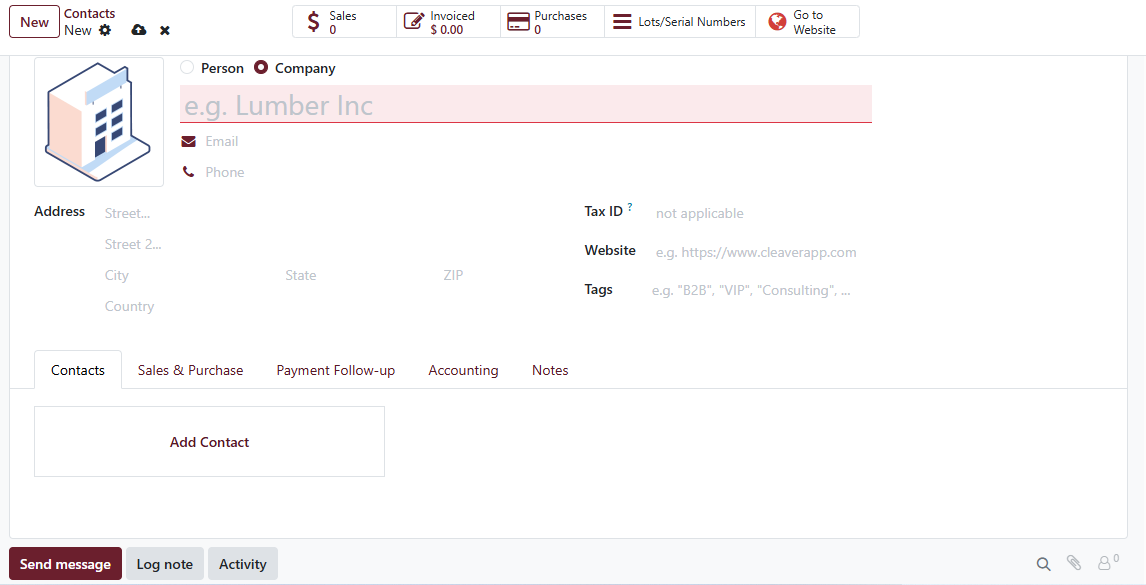
Contact form — minimum required fields highlighted.
Create the carcass
Animals → New. Tag #, owner (the customer), species, drop-off date. If the customer told you the live weight, type it into Live Weight; otherwise leave blank and fill in Hanging Weight after the animal is dressed. Slaughtered on-site drives the automatic Kill Fee on the customer’s sale order — tick when your shop did the kill, leave off when the customer brought an already-dressed carcass.
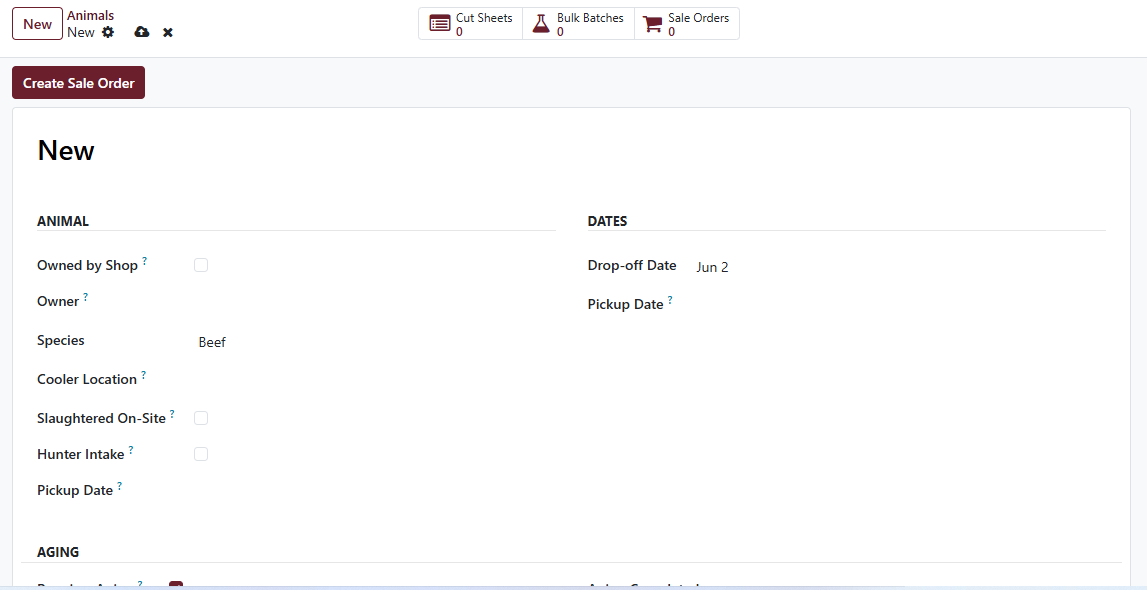
Tag # is generated automatically; everything else is one-click obvious. The aging clock starts as soon as you save.
Aging
Target Aging Days defaults from the species (beef 14, pork 0, lamb 7 — tunable in Settings → Cleaver → Species). The Operations dashboard shows you carcasses ready to pull today and any that have aged past target.
Hunter intake
For game animals tick Hunter Intake — that reveals fields for game tag #, hunting license, season, management unit, and disposition (keep / share / donate). Donations require a recipient partner — the system enforces that on save so the donation report is always complete.
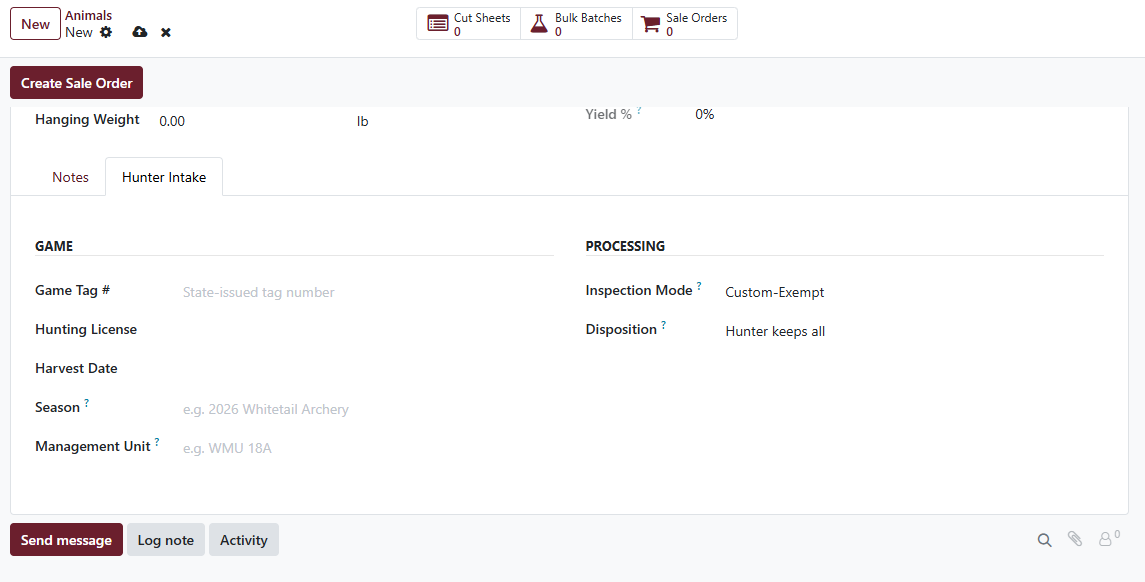
Hunter Intake panel — game tag, license, season, donation recipient.
Custom vs in-house
What you do next depends on who owns the animal:
- Custom (customer’s animal): build a cut sheet for the customer. See Building a cut sheet.
- In-house (shop’s animal): create a bulk batch for ground / trim / stew, or build internal cut sheets. See Bulk batches.
A single carcass can have both — for example, a customer might buy a half of beef (custom cut sheet) and the other half goes to the case (bulk batch). Set up both records from the same carcass form.
When you need to delete a carcass
Cleaver intentionally makes this hard — every downstream record (cut sheets, packs, sale orders, compliance entries) traces back to a carcass for recall traceability, and silent deletion would dissolve that chain.
The rules:
- Blocked if any cut sheet has an active sale order. Cancel the SO first; the error message names the sheet, the SO, and the state.
- Blocked if any cut sheet has an active stock picking. Cancel the picking first.
- Blocked if any sheets exist at all (even draft / cancelled). Delete the sheets first — each delete posts an audit note to this carcass’s chatter.
- Blocked if the carcass contributed trim to any posted bulk batch. No bypass — those stock lots are live in inventory.
There’s no manager override on this; the guards apply to everyone. See Troubleshooting → I can’t delete a carcass.