Building a cut sheet
A cut sheet is the spec the cutter follows when they break the carcass down. Each line says what primal, what cut type, how much — plus options like steak thickness, roast size, ground/sausage flavor, smoke / cure.
Build it from a template
Cut Sheets → New. Pick the customer, link the animal, then pick a template (Half Beef Standard, Whole Hog Bacon-Heavy, Hunter Deer Basic, etc.) and click Load Template. Every line populates; tweak the few that the customer asked to change.
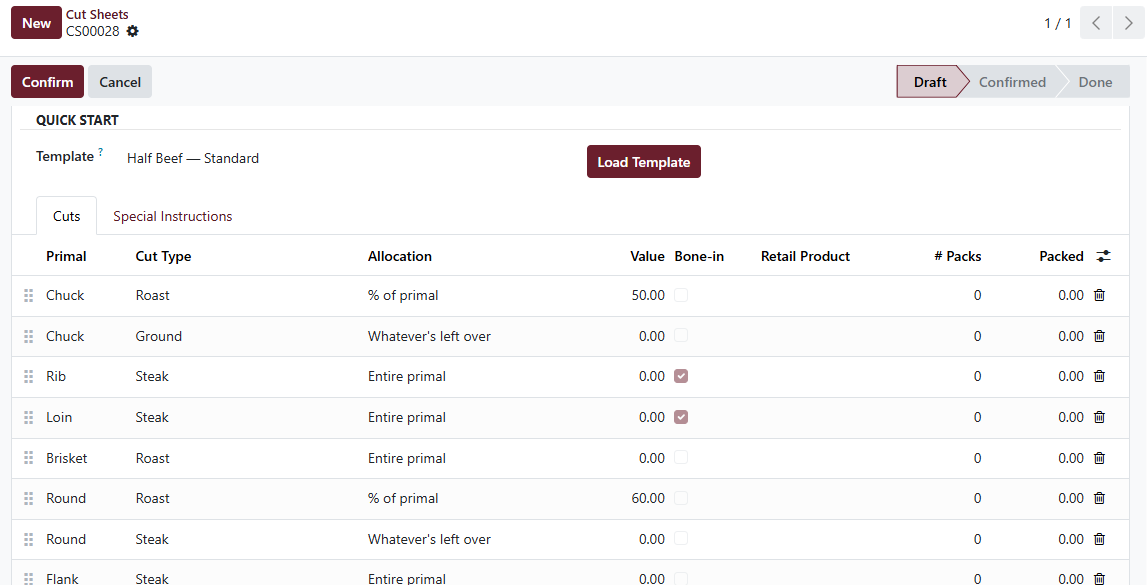
Cut sheet with the Half Beef Standard template applied. Every line is editable; double-click to open the per-line form for the full option panel.
Per-line options
Click a line to open its detail form. Steaks have thickness; roasts have size; ground has fat ratio; sausage has flavor and links-per-pack. Smoke / Cure tickboxes appear on bacon, ham, jerky, and snack-stick lines.
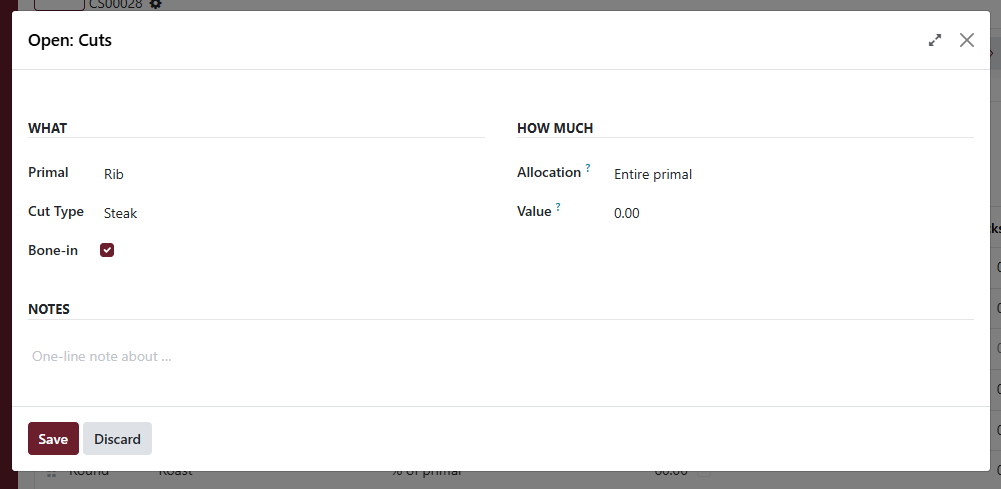
Only the options that apply to the chosen cut type are shown.
Building new templates
Templates are built as their own records, not cloned from a sheet. Go to Settings → Cleaver → Cut Sheet Templates → New, name it (e.g., “Half Beef — Bacon-Heavy”), pick the species, then add the lines that should appear on every future sheet that uses it. Once saved, the template shows up in the picker on every cut-sheet form for matching species.
Confirm the spec
Once the customer signs off, hit Confirm. That locks the spec — lines can’t be added or removed without resetting back to draft. Confirm is also what unlocks the cutter’s Pack & Label flow.
When you need to delete a cut sheet
Cleaver protects the audit trail by blocking deletion in three cases. See Troubleshooting → I can’t delete a cut sheet for the rules. Short version: counter staff can’t delete sheets with packs; nobody can delete a sheet with an active SO or picking. Cancel artifacts first.